Touchscreens
A touchscreen is not just a display. It's a display plus user input. It must not only show temperature or a button, but tell the device where you touched.
Because of this, a touchscreen is almost always more complex than OLED. You need to choose not only size and resolution, but understand who draws the interface, who processes touches, what interface is used and whether your chosen firmware supports it.
When Touchscreen Is Useful
A touchscreen makes sense if the device needs a full local interface:
- choosing drying mode;
- setting temperature and time;
- material profile list;
- confirming errors;
- manual fan, lighting or damper control;
- Wi-Fi setup;
- viewing status without phone or computer.
If you only need to show temperature, error and mode, usually OLED, a couple buttons, encoder or web interface is enough. A touchscreen adds cost, power, enclosure space, firmware, cables and another failure point.
Main Question: Who Draws the Interface
Before buying, answer the main question: where does the user interface live.
There are several different screen classes:
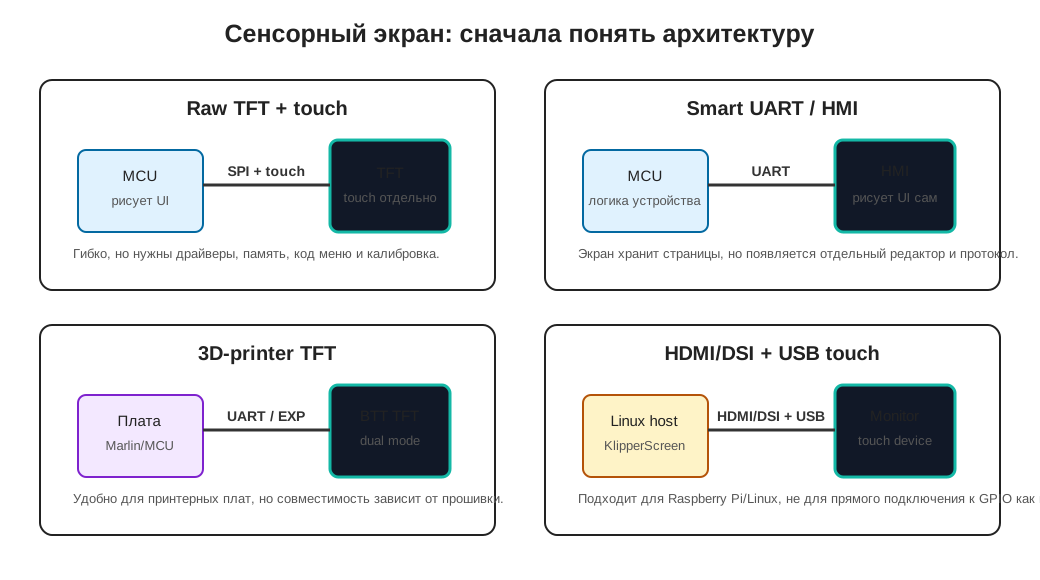
Raw TFT is a simple screen with a controller like ILI9341, ILI9488, ST7789, plus a separate touch controller like XPT2046 or FT5x06. Your microcontroller or firmware draws the interface. This is flexible but requires code, memory, drivers and calibration.
Smart UART/HMI display is a screen with its own firmware and interface editor, like Nextion. The microcontroller sends commands via UART, and the screen shows pages and elements. This reduces MCU load but ties your project to that screen's tools and protocol.
Printer TFT, like BTT TFT35, often has its own touchscreen mode via UART and classic 12864 LCD emulation via EXP connectors. This screen is convenient for Marlin/3D printer boards, but it's not a universal panel for any DIY device.
HDMI/DSI/USB screen for Linux host works like a regular monitor and touch device for Raspberry Pi or other Linux computer. This suits KlipperScreen but doesn't connect directly to small ESP32 as a simple module.
Connection Interfaces
Touchscreens use different interfaces.
Common options:
- SPI - often on small TFT for ESP32/Arduino;
- I2C - often on capacitive touch controllers, sometimes on touch controllers;
- UART - on smart displays and some 3D printer TFT;
- EXP1/EXP2/EXP3 - on screens compatible with 3D printer boards;
- HDMI + USB - on Linux screens for Raspberry Pi;
- DSI - on some Raspberry Pi screens;
- parallel RGB/8080 - on faster TFT, but more wires and requirements.
You cannot choose a screen by diagonal alone. Two 3.5" screens can be completely different: one SPI module for ESP32, second UART panel with its own firmware, third HDMI screen for Raspberry Pi.
Resistive and Capacitive Touch
The touch part also varies.
Resistive touch:
- responds to finger, stylus or fingernail pressure;
- often requires calibration;
- usually worse for gestures;
- can be cheaper;
- found with controllers like
XPT2046.
Capacitive touch:
- responds to a finger;
- usually nicer to use;
- can support multiple touches;
- often has a separate controller like
FT5x06,GT911families; - works worse with thick gloves and some protective covers.
For a workshop device, resistive touch is sometimes more practical because you can press it with a fingernail or stylus. For a nice panel on the enclosure, capacitive usually feels more modern.
Power, Backlight and Current
A TFT screen draws more than a small OLED. The main power consumer is the backlight.
Before connecting, check:
- screen power voltage;
- backlight current;
- whether you need a separate 5V source;
- whether backlight brightness is adjustable;
- whether logic levels are compatible;
- whether the screen overloads the board regulator;
- whether power sags when backlight turns on.
If the screen whitens, flickers, reboots the controller or loses touch events, first check power and ground, not the interface code.
For a device with a heater, the screen shouldn't power from a random weak pin. It should be part of a proper power scheme with clear margin.
Firmware and Compatibility
A beautiful screen is useless if your chosen firmware doesn't support it.
For ESP32/Arduino approach, you need to check:
- is there a display driver;
- is there a touch controller driver;
- are there enough GPIO;
- is there enough RAM/PSRAM for buffer;
- what graphics framework is used;
- who will write the menu.
For ESPHome, check support for the specific display driver and touchscreen component. For example, ILI9xxx displays and XPT2046 touch need SPI and separate configuration, and resistive touch needs calibration.
For Klipper, there are usually two different worlds:
- small displays connected to MCU and described in Klipper config;
- KlipperScreen on Linux host, where the screen works as a monitor and touch device.
KlipperScreen usually needs a screen where Linux can show a desktop or console. This is not the same as a small UART TFT connected to a printer board.
For Marlin/printer boards, check whether the specific screen supports the needed mode: UART touch mode, 12864 emulation, EXP1/EXP2/EXP3, specific controller type in firmware config.
Smart Display and Nextion-like Screens
Smart display is convenient because the screen stores pages, buttons, fonts and images. The controller sends commands via UART and gets touch events.
Pros:
- less load on microcontroller;
- less graphics code in main firmware;
- you can draw the interface in the screen editor;
- only UART and power needed.
Cons:
- you need to learn a separate editor and protocol;
- interface is often stored in the screen;
- harder to keep UI and device firmware versions in sync;
- not all elements behave like in a regular app;
- replacing the screen may require redesign.
For a simple device, smart display can be a good solution if you need a nice panel without a Linux host. But it's not a "normal monitor": it's a separate module with its own logic.
Case, Cables and Servicing
A touchscreen is something users will touch with their hands. So mechanics matter, not just wires.
Check in advance:
- screen is not in a hot zone;
- there's a frame or protective mount;
- cable doesn't bend sharply when opening cover;
- cable can be disconnected for servicing;
- connector cannot go in backward;
- case doesn't press on screen;
- there's access to SD card or USB for updates if needed;
- user doesn't touch power parts while using screen;
- touch/display wiring is separate from heater wires.
For devices with a heater, it's better to move the screen to the user zone, away from hot air and power parts.
What to Check Before Buying
Before buying a touchscreen, check:
- diagonal and resolution;
- display type: raw TFT, smart UART, printer TFT, HDMI/DSI;
- display interface;
- touch interface;
- display controller: for example
ILI9341,ILI9488,ST7789; - touch controller: for example
XPT2046,FT5x06,GT911; - power and backlight current;
- logic levels;
- support in firmware;
- availability of documentation and examples;
- availability of libraries;
- RAM/PSRAM requirements;
- board dimensions, holes and cable;
- operating temperature;
- firmware/interface update method.
If the product description lacks display controller, interface, power and connection examples, it's better not to use such a screen for your first project.
Typical Errors
- bought a screen "for Arduino", but the project is KlipperScreen on Linux;
- bought HDMI screen and tried connecting to ESP32 directly;
- bought UART smart display but expected it to work like a regular TFT;
- chose raw TFT but didn't plan time for menu and graphics code;
- not enough GPIO for SPI display and touch controller;
- not enough RAM for screen buffer;
- didn't check touch controller;
- didn't calibrate resistive touch;
- screen flickers due to weak backlight power;
- cable runs next to heater power wires;
- screen mounted in hot zone;
- interface looks nice but main error is hard to see.
Main Point
Choose a touchscreen by architecture, not diagonal. First decide who draws the interface: microcontroller, the screen itself, printer firmware or Linux host. Then check interface, power, touch controller, firmware support and enclosure mechanics.
For a simple heater, dryer or filter, usually OLED, buttons or web interface is enough. Use a touchscreen when users really need a local interface.
Reference Materials
- KlipperScreen: Hardware - requirements and screen examples for KlipperScreen, including HDMI/DSI/Raspberry Pi options.
- BIGTREETECH TouchScreenFirmware - firmware and BTT TFT modes: touch mode, Marlin/12864 emulation, EXP connectors and settings.
- BIGTREETECH TFT35 V3.0 repository - documentation and files for popular 3D printer TFT35.
- Adafruit 3.5 inch TFT Touchscreen Breakout - example of raw TFT with SPI/8-bit modes, separate touch and libraries.
- ESPHome: Touchscreen Components - documentation on touch components, calibration and linking raw touch coordinates to display coordinates.
- ESPHome: ILI9xxx TFT LCD Series - example of raw TFT display support on ESPHome and important memory limitations.